Multimodal Chatbots: Image and File Upload Workflows That Actually Deflect Tickets
TL;DR
Multimodal chatbots let customers share photos, screenshots, documents, video, or audio directly in a conversation, giving AI more context than text alone.
YourGPT’s Attachment Capture node in AI Studio can collect these files mid-conversation, while vision-capable AI models can analyze and understand their contents.
Key use cases include ecommerce returns, insurance and warranty claims, device troubleshooting, document intake, visual product search, field-service diagnostics, and onboarding document collection.
Image-based workflows also introduce fraud and privacy risks, making strong verification, access controls, and data-handling safeguards essential from the start.
Support conversations run into the same problem again and again. A customer can see the issue clearly, a cracked screen, a wrong item, an error on a device, but has to describe it in words. Typing what something looks like takes longer than showing it, and it’s rarely as clear.
A simple example shows why. Someone’s package arrives damaged. They message support and type out where it’s cracked, how bad it looks, and whether the box was crushed. The agent reads it, then asks for a photo anyway. One photo would have answered it all.
This is what image and file upload changes inside a multimodal chatbot. A customer sends a photo or a document straight into the chat, and the conversation moves forward without the back and forth. The rest of this guide walks through seven places where this plays out, and where a person should still check the result.
What is a Multimodal Chatbot?
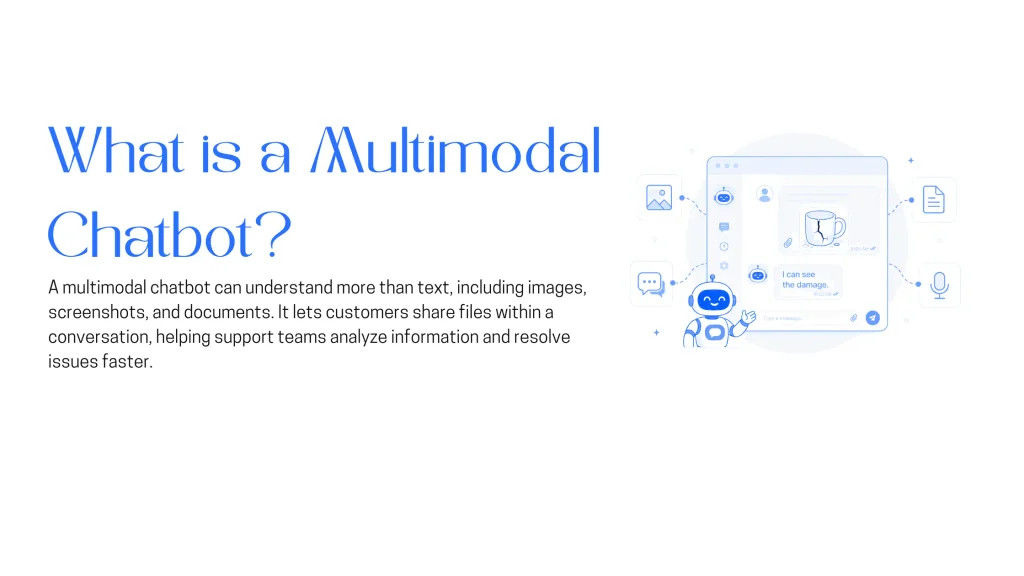
Most explainers stop at a definition, something like a chatbot that understands more than typed text, usually some mix of text, voice, and images. That’s accurate, but it says nothing about what changes for a support team on a Tuesday afternoon, or where file upload ranks among the features a support chatbot needs today.
The practical version is narrower. A multimodal chatbot accepts an image, a screenshot, or a document as part of the same conversation a customer is already having, and a model from the platform reads what’s inside the file instead of a human opening an attachment later. YourGPT documents this specifically for WhatsApp, where the platform processes and analyzes images customers send, including product photos and scanned documents (WhatsApp AI Chatbot Builder for Business). The mechanism decides whether the feature saves anyone time.
How Multimodal Chatbots Process Images and Files
Chatbot file upload inside YourGPT’s AI Studio runs through a few connected building blocks:
- Attachment Capture: a support flow drops a Capture node into the canvas, sets its mode to Attachment, and the chatbot prompts the customer to send a file mid-conversation instead of redirecting to a portal. The node accepts four types: image, video, audio, and general file formats including PDFs and documents (Capture).
- Variable storage: once captured, the file is stored in a flow variable, available to later steps the same way a typed answer would be.
- Model reading: an AI Response or Autonomous Agent node reads the stored file. The model roster spans multiple providers, including GPT-5, Claude Sonnet 4.5, Gemini 2.5 Pro, and several lighter tiers built for cost-sensitive workloads, each carrying its own credit multiplier (AI Models & Usage).
- OCR training: a separate path extracts text buried inside an image for the knowledge base, a different job from reading a customer’s live upload but built on the same underlying capability (Others).
None of this requires custom code. The building blocks are native Studio nodes, wired together like any other flow.
7 Image Chatbot Workflows Built to Deflect Tickets
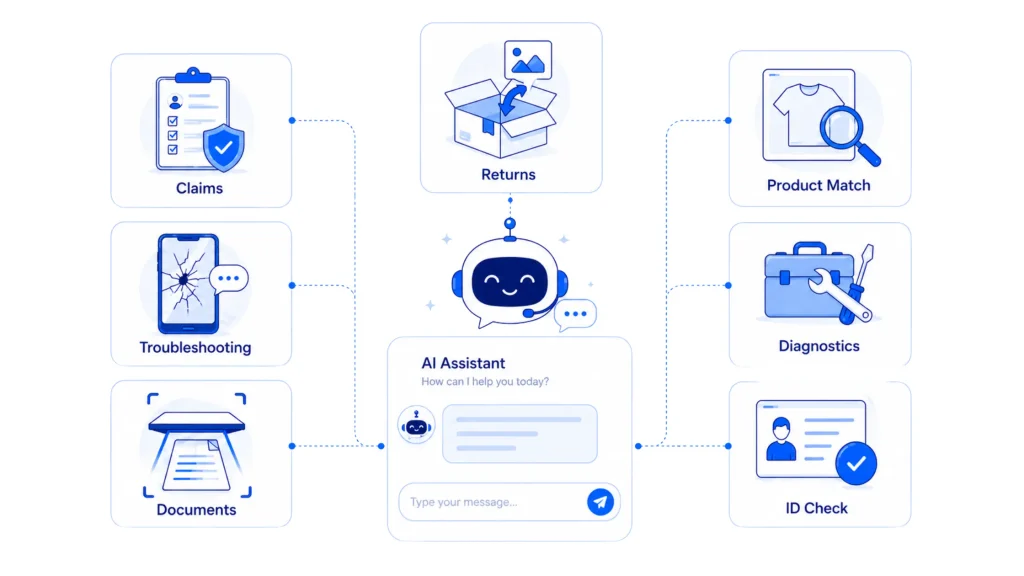
Seven patterns show up again and again in support queues once a chatbot can accept more than typed text. Each removes a specific kind of friction, the sort that shows up directly in a team’s deflection rate once someone measures it.
1. Ecommerce Returns From a Single Photo
A shopper who says an item arrived damaged used to type out where, how bad, and whether the packaging looked intact, part of the wider ecommerce customer service workload a return generates. With image capture wired in, that changes:
- Photo instead of a paragraph: the shopper attaches one photo instead of typing out the damage.
- Automatic logging and routing: the chatbot logs the claim against the order record and routes it to a human when damage or order value crosses a threshold.
- Photo review stays largely human: platforms resolving 70 to 85 percent of returns without a person still flag damaged-item cases for human photo review, according to a 2026 guide from Oscar Chat (How to Handle Shopify Returns with an AI Chatbot).
Whether a photo alone should approve a refund is a judgment call, covered in the fraud section further down.
2. Insurance and Warranty Claims Intake
First notice of loss follows the same pattern in most claims workflows: the customer describes what happened, uploads photos and paperwork, and the insurer verifies coverage before payout. Chat-based capture handles that first step:
- Faster intake at scale: first-notice-of-loss automation cut Sedgwick’s average claims processing time from 10 days to 36 hours, according to Hesper AI’s 2026 review of the claims-automation market (Insurance claims automation in 2026).
- Faster damage estimating: the same review found AI photo analysis lifted damage-estimation efficiency by up to 54 percent.
- Adjudication stays separate: coverage decisions and payout amounts still stay with a licensed adjuster, a boundary claims-automation vendors treat as fixed (Insurance Claims Intake Automation).
Intake is the part that moves faster. The decision that follows it still needs a person.
3. Device Troubleshooting From a Screenshot
A ticket that only says a product stopped working forces an agent to ask several clarifying questions before troubleshooting starts. A screenshot attached directly inside the chat changes that:
- The friction is documented: tickets missing a screenshot are a reason the same issue gets solved from scratch by a different agent every time, according to one support-operations guide (How to Troubleshoot Technical Issues).
- The chatbot reads the screen: an error code, a broken layout, or a settings menu, then matches it against known issues.
- No stat to lean on: this workflow carries the least sourced data of the seven, and its value shows up mainly as fewer clarifying messages per ticket.
Inventing a number here would not make that any truer.
4. Document Intake: Invoices, Prescriptions, and IDs
Paperwork-heavy requests, an invoice dispute, a prescription refill, a field that needs checking, used to mean emailing a scan outside the conversation. Attachment capture keeps the document inside the chat instead:
- The problem: Kimura, an IT solutions provider for Argentine government agencies and labor unions, faced scanned forms full of tables, stamps, and handwritten entries that existing systems couldn’t read without heavy manual work.
- The result: after training YourGPT’s OCR on real government forms, Kimura reported a 40 percent reduction in processing time, a 10 percent increase in handling capacity, a 60 percent drop in manual intervention, and 3x overall throughput (Kimura Improves Government Document Processing with YourGPT AI Chatbot).
- What transfers to a simpler flow: pulling a number, a total, or a date out of an image to look up the right record, similar to AI document indexing and overlapping with a dedicated billing support AI agent.
Confirming a document is genuine still calls for dedicated verification systems. Kimura’s results came from processing those documents, and that distinction holds.
5. Visual Product Finder
A shopper describing a product from memory, a blue jacket with a hood, something like a friend’s, rarely gives a chatbot enough to work with in plain text. A photo does the job faster:
- A documented capability: YourGPT lists product identification from photos among its WhatsApp integration’s capabilities (WhatsApp AI Chatbot Builder for Business).
- Best fit for ecommerce and retail: product questions there often start with a picture instead of a name.
- Turns support into sales: matching the photo to a catalog item, then answering the follow-up question about size, price, or availability in the same thread.
6. Field-Service Diagnostics
A technician on site, or a customer avoiding a truck roll, photographs an error panel, a leak, or a part number instead of describing it by phone:
- Adoption is already measurable: a BuildOps and Kickstant survey found 43 % of contractors already using AI for jobsite search or chat (Top Use Cases for AI in Field Service).
- Attachment Capture collects the photo: an API Skill pushes it and the technician’s notes into a field-service management system.
- Diagnosis stays with a specialist: it still comes from whatever specialist tool or expert the business already trusts.
Here, YourGPT’s role is closer to infrastructure than finished product. The value is getting the photo and context into the right system without a phone call in between.
7. Onboarding Document Verification
New account signups in regulated industries, banking, lending, anything requiring identity checks, often stall at the same step:
- The stall point: uploading a government ID and a proof of address, a step known for losing applicants.
- What the chatbot removes: collecting those documents inside the same chat that walked the customer through signup, cutting one context switch.
- What stays separate: confirming an ID is genuine, matching a live selfie, and screening a name against sanctions lists, which call for dedicated identity-verification tooling (What Is KYC?).
Collection and a first pass at extraction stay with the chatbot. Verification hands off structured to the system built for that job.
Security, Privacy and Fraud Risks of Image-Based Chatbots
Accepting a photo as evidence assumes the photo is real. That assumption is breaking down:
- Refund fraud is already measurable: in a 2026 survey of more than 6,200 shoppers, 65 percent said generative AI has made it easier to falsely claim a refund for something bought online, according to Ravelin’s State of Refunds 2026 report (AI-powered refund abuse and dispute fraud).
- Return fraud has a known baseline: the National Retail Federation puts total return fraud at close to 9 percent of all retail returns, a figure covered in CXTMS’s 2026 reporting on the trend (AI-Generated Return Fraud Is Costing Retailers Billions).
- Casual review already fails: a generated image of a cracked screen or a torn seam can now pass casual review, so any workflow that auto-approves a refund from a photo alone needs an order-value threshold, image forensics, or a human reviewer above a set dollar amount.
- Documents carry a separate risk: a government ID, a prescription, or a proof-of-address document counts as sensitive personal data the moment it lands in the conversation.
- Infrastructure security covers a narrower scope: YourGPT’s platform runs on SOC 2 Type II and GDPR-aligned infrastructure, covering how data is stored and accessed (WhatsApp AI Chatbot Builder for Business). Fraud detection and document forensics sit outside that scope and need their own controls, especially for any business handling identity documents at volume.
How to Build a Multimodal Chatbot in YourGPT
YourGPT helps you build a multimodal chatbot that can understand different types of input and respond with rich, context-aware answers. You can set up the agent, add knowledge, configure media handling, and deploy it from one platform.
Step 1: Sign up and get inside the dashboard

Start by creating your account or logging in.
Once you are inside, you can create a new agent and choose how you want it to be deployed, whether that is a chat widget, search interface, or another channel.
Step 2: Train the agent on your business knowledge
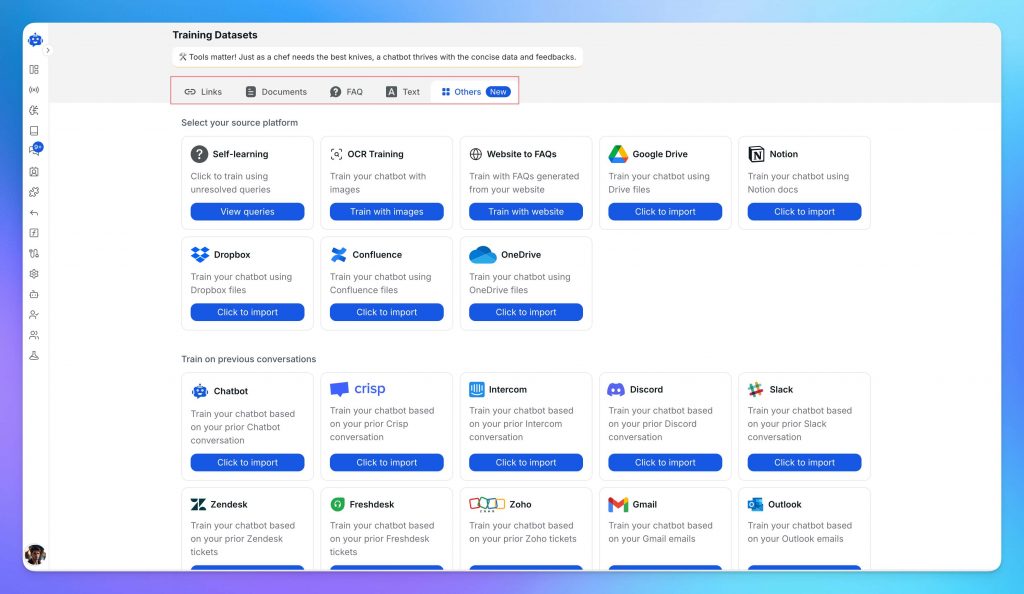
Upload the content your team already relies on to answer questions and complete tasks. This can include:
- FAQs and support articles
- Past customer conversations
- Product documentation and manuals
- Internal SOPs or process guides
- Content from tools like Notion, Google Drive, or Dropbox
You can upload files directly or connect your existing sources.
The quality of this material directly shapes how your agent performs. Detailed, specific content leads to accurate responses. Generic content leads to generic answers.
At this stage, define the agent’s role and tone. A support agent, a sales agent, and an internal assistant should behave differently. Setting this clearly improves both accuracy and consistency.
Step 3: Open the studio.
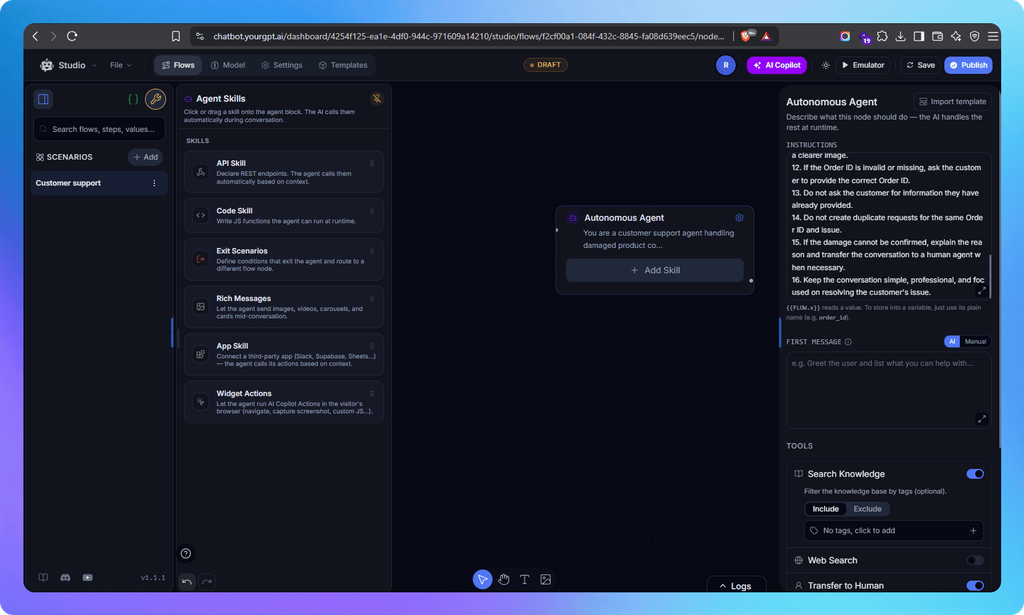
Add the scenario name “customer support.” Open the toolbar, scroll a little, and select the “my autonomous” node. Drag the “my autonomous” node to the canvas and click on it; the instruction board will open. Give your instructions, including an optional first message. You can use tools like web search, transfer to human, and you can even control the Previous Chat Count. After that, save the instruction by clicking the save button. For advanced features, you can add skills like an API skill, which will take your API and answer from there, or code skills. In this, we have rich messages:
- Image: Agent can send images mid-conversation.
- Video: Agent can send video files.
- Audio: Agent can send audio files.
- Buttons: Agent can offer clickable button choices (renders as native buttons on WhatsApp, Messenger, etc.).
- Card: Agent can send a single info/product card.
- Carousel: Agent can send a multi-card carousel.
This is what turns the agent from a conversational layer into a working operational system. You can even add an app skill.
Step 4: Test and Refine the Agent
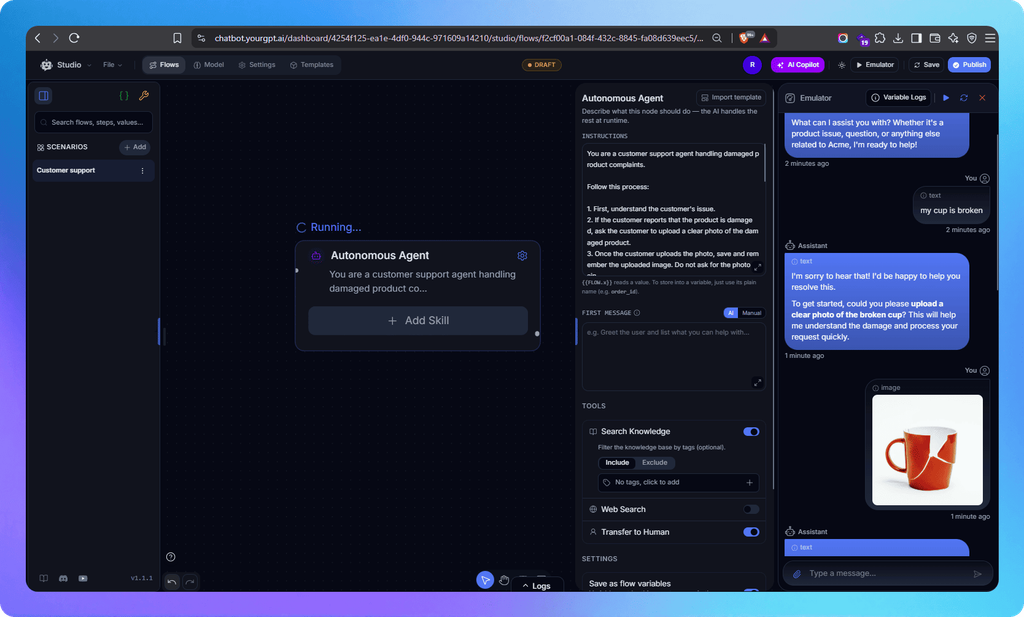
Before deployment, use the built-in testing environment to see how the agent performs.
Ask real questions your team receives. Try edge cases. Push it to failure.
Focus on a few things:
- Whether the answers are complete and correct
- Where the agent lacks information
- How it handles unclear or complex queries
- Whether fallback responses trigger correctly
- How escalation to a human works
This step is where most improvements happen. A short testing phase here prevents a lot of issues later.
Step 5: Publish Your AI Agent
After testing, you need to publish the flow. To do that:
- Click on the “Publish” button in the top right corner.
- You will see a modal asking if you have not enabled agent mode (please enable it).
- Provide a version name (e.g., 1.0.2). Than click on it .
FAQ
How to Build a Multimodal Chatbot? ▼
The fastest path is a no-code platform with a dedicated file-upload building block already wired into the flow builder. That block should collect the file into a variable, hand it to a vision-capable model for reading, and route to a human when the case falls outside what the model should decide alone, the same three-step shape covered in the setup section earlier in this guide.
What File Types Can a Multimodal Chatbot Accept? ▼
Most platforms built for this support four broad categories: images, video, audio, and general documents such as PDFs and Word files. Exact file-size limits and which formats are supported within each category vary by platform, and are worth checking before a workflow goes live.
Can a Chatbot Approve a Refund Automatically From a Photo Alone? ▼
In most setups, no, and that’s by design. The workable pattern is layered: an order-value threshold below which a straightforward case moves forward automatically, and a human reviewer above it, with basic image forensics as an optional third layer for higher-value claims. Where to set that threshold depends on a business’s average order value and how much refund fraud it already sees, not a fixed number that works the same everywhere.
Is It Safe to Upload Identity Documents or Medical Documents to a Chatbot? ▼
It can be, with the right setup, but that comes down to decisions a business makes, not just the platform. Worth checking before turning on document capture for anything like an ID or a prescription: how long the file is retained after the workflow completes, whether it’s visible to every agent or restricted by role, and whether the vendor’s data-handling infrastructure is independently verified instead of assumed. None of that replaces dedicated fraud-detection or document-forensics tooling, which is a separate layer entirely.
Does File Upload Replace a Separate Claims or Return Portal? ▼
For the intake step, often yes. Collecting a photo or document inside the same conversation a customer is already having removes the context switch of a separate upload form or portal. The back-end verification and adjudication step stays separate: coverage decisions, fraud checks, and final approvals still belong to dedicated systems or a human reviewer.
Does YourGPT Support Image and File Uploads Inside a Conversation? ▼
Yes. The building block is the Capture node inside AI Studio, set to Attachment mode, accepting images, video, audio, and general file formats such as PDFs directly inside a chat flow. See the Capture documentation. It’s running in production, not just documented: the Kimura case study earlier in this guide shows it processing scanned government forms with tables and handwritten entries at scale.
What AI Models Does YourGPT Use to Read an Uploaded Image or Document? ▼
The roster spans multiple providers, including GPT-5, Claude Sonnet 4.5, Gemini 2.5 Pro, and several lighter, cost-efficient tiers, each available inside the AI Response and Autonomous Agent nodes. See AI Models & Usage. Heavier models cost more credits per task, so a common setup uses a lighter model for straightforward extraction, such as reading an invoice number from a clear scan, and a stronger one for cases that need judgment, like assessing whether a damage photo actually matches the claim being made.
Does Adding File Upload Require Custom Code? ▼
Not on most no-code platforms. The building blocks, a capture step, a variable to store the file, and an AI node to read it, are usually native parts of the flow builder that a support or ops team can wire together directly.
Conclusion
None of these seven workflows require a new product. Each one runs on a Capture node set to Attachment mode, a model that can read what comes through it, and an escalation rule for the cases that need a person. Most support teams already have the pieces. What is usually missing is the flow that connects them.
Start with whichever queue already generates the most email attachments and portal uploads today, ecommerce returns for a retailer, claims intake for an insurer, ID collection for a fintech signup flow. That is the queue where a photo already does the explaining. Wiring it into the conversation means the chatbot stops asking for a paragraph when a picture was always the clearer answer.

Related posts